Free Netscape HTML Editor
Editing webpages using the Netscape web browser

Allwebco templates were originally created in Notepad but they can be edited using the Netscape browser built-in editor. This is older software and may not be compatible with all versions of Windows or Mac OS X. Some edits will need to be done in a plain text editor like Notepad or TextEdit on Mac.
See Instead…
See Instead…
Note: This support page contains older and outdated information.
Once you have downloaded your template and unzipped it, you'll need an HTML editor. One choice is the free Netscape HTML editor. This editor is built into older versions of the Netscape browser such as version 6.0 and version 7.02. This software includes help files for more advanced editing. Below is a brief outline of how to get started.
Downloaded Netscape 7.02:
 Download PC -- (View site security score) Mirror PC -- (View site security score) Download Mac - classic environment only -- (View site security score)
Note: Be sure to download Netscape 7.02 and not 7.2. We have tested all versions on a PC in Windows XP and the 7.02 version is the best version to edit any template file type. When installing we chose the "custom" install.
Note: The Netscape editor is not recommended for use on Chrome model templates or any templates or webpages that include "iFrame" code. Some templates may us "iFrames" for the footer or sidebar.
About the Netscape editor
The Netscape editor, also known as "Netscape Composer" is only included in older downloads of Netscape. Version 7.02 is the best solution for editing Allwebco templates.
Set Netscape preferences for editing
Once you have installed Netscape 7.02, open the browser. On the menu choose "edit" then "preferences". Choose "Composer" and make sure that "Retain Original source formatting' is checked on. This should be the default.

File types
The Netscape editor can be used for most file types used in Allwebco templates including .js .css and most important, for your .htm and .html files. If setup properly this editor will not disturb the code used in any type of template file. This editor is also available for both PC and MAC. Be sure to backup your files and to check each edit in Netscape, Firefox and IE before you proceed to the next edit.
How to edit an HTML page
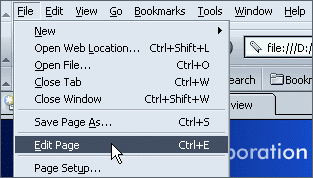
Open your Netscape browser. open the folder with your template files. Drag any one of the HTML pages into the Netscape browser (or you can choose "File" then "Open File" instead). Now choose "File" then choose "Edit Page". You can do your edits right there. You can edit in either "View" then "HTML Source" or in "Normal Edit Mode". Save the file and refresh the browser to see your updates. Be sure to backup your files and to check each edit in Netscape, Firefox and IE before you proceed to the next edit.
How to edit a .js or .css or .txt file
Open your Netscape browser. open the folder with your template files. Drag a .js or .css or .txt file into the Netscape browser (or you can choose "File" then "Open File" instead). Now choose "File" then choose "Edit Page". Edit the file with your text. Save the file and refresh the browser to see your updates. Be sure to backup your files and to check each edit in Netscape, Firefox and IE before you proceed to the next edit.
Related Topics:
Getting Started
Editing Software Choices
Template File Types