Flash Mini-Video Player Add-On Setup
Website template video options and support

Add-on details
Support information below is outdated. Flash video is no longer used in Allwebco templates. To update your website, use either the HTML5 video add-on, or add YouTube video.
Outdated: See free scripts and website add-ons. If your template or add-on includes a "Video-mini" folder you have this player add-on. You will need to convert your video files to .flv Flash video files to setup this player.
Getting started
To setup your Flash video add-on, unzip your add-on download .zip file and open the "MIN-help-video.html" in your unzipped folder.
Why use Flash video?
Video embedded inside a Flash application can stream better and start faster then HTML video code. Flash video is also more compatible in more web browsers then standard HTML code. Flash video is used at websites like YouTube.
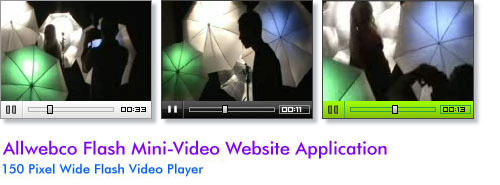
Files for the player
The files for this player are all included in the "Video-mini" folder. Player skins are included in the "skins" folder inside this folder. The video sample pages will be outside the "Video-mini" folder and will all be ".htm" pages.
Video file types used
In the "Video-mini" folder you will see some .flv files. These are the converted video files that you will replace. You can convert any video type; avi, wmv, mov, mpg, mp4, and most other types. You will need software to convert your files to .flv.
What size should I make my videos?
You should use 150 x 100 16:9 ratio videos, or 150 x 113 4:3 ratio videos. The Flash video player will also fit any size video and stretch or shrink it to fit. We used a bit rate of 48 and frame rate of 20 in our video samples.
Video editing software
You can use "Windows Movie Maker" included with most versions of Windows. Check the Microsoft Movie Maker Website for details. Movie maker can edit .avi and .mpg movies, however, this is a limited version of the software and can not convert .flv files. See "Converting your videos to Flash videos" and also see "Using Windows Movie Maker software" below on this page.
Note: For the samples included with the addon we did all editing using Windows Movie Maker and converted them using the Sothink Video Encoder for Adobe Flash so we could make our videos fit to the exact sizes for the Flash Mini-Video player.
The following software includes many more video editing options including .flv conversion for Flash video. You may not need a 3rd party converter with the following software.
Converting your videos to Flash videos
The software shown above can convert any video to .flv files but may not allow for exact sizes when converting.
You must convert your video files to use the Flash player. The Flash video player uses .flv files for video. You can easily convert any movie type, like avi, wmv, mov, mpg, mp4 and others to .flv files. Here are some options.
- If you have Flash software you can convert your video files to .flv files in the software.
- You can use Corel VideoStudio or Adobe Premiere to convert your .avi, .mpg and other video types to .flv format to use in Flash video players.
- Recommended: After much testing we found the OGG Video Converter or Sothink Video Encoder for Adobe Flash to be the best video to .flv converter we tested. This converter allows for the selection of an exact video size and "bit rate quality" for the .flv file. It is easy to use and they offer a free trial download.
- For converting almost any video type to .flv easily you can try the ImTOO FLV Converter from ImTOO. We used this application to convert our sample .flv files used in the template. You can download the ImTOO trial versions using the links below. The free download will convert only half of your video file.
- You can try this search at Google for more info on .flv conversion.
Trial Downloads:
- OGG Video Converter
- Sothink Video Encoder for Adobe Flash (Trial download)
- ImTOO FLV Video Converter (Trial download)
- ImTOO Video Converter (Trial download)
- ImTOO MOV to FLV Converter (Trial download)
What size should I convert the videos?
You can convert at any size and the Flash Mini-Video player will shrink them to fit. It is recommended that you use; 150 x 100 for 16:9 videos and 150 x 113 for 4:3 videos. You may need to experiment to see what gives you the lowest file size and highest image quality. We used a bit rate of 48 in our samples.
Setup video 1 in the template
- Convert your video file as outlined above.
- Do the steps as outlined on your "MIN-help-video.html" or other help page in your download.
- Place your converted .flv video file in the "Video-mini" folder.
- Rename your ".flv" video file to "video-1.flv". Optionally, you can edit the "video-1.js" with your .flv file name. (See visual below for details.)
- Open the "MIN-video-1.htm" or HTML page that you added the video code to and test that your video is working. (See your "MIN-help-video.html")
Editing the video .js files
In the "Video-mini" you will find files "video-1.js" through "video-4.js". These files control the movie and include options you can change. See visual for details.

Video player skins
Skins used in the Mini-Video player will be located in the "Video-mini/skins" folder. You can create your own 150 x 17 .jpg images to use in the player. Place your skin .jpg in the "Video-mini/skins" folder. Edit the skin name in the "video-?.js" file you are using. See visual above. Photoshop PSD skin files are located in the "extras" folder. To view all included skins open the "skins-mini.htm" in the "skins" folder.
Autostart option
Edit the "video-?.js"file in the "Video-mini" folder. Set the "Fautostart" option to yes or no, all lowercase, to have the video start or not start when the "video?.htm" page loads.
Show the time option
Edit the "video-?.js" file in the "Video-mini" folder. Set the "Fshowtime" option to yes or no, all lowercase, to show the remaining video time.
Width and height of the videos
Only 2 size options are included with the add-on. 150 x 100 16:9 ratio videos, and 150 x 113 for 4:3 ratio videos. The player will shrink any video to these sizes.
To use 150 x 100 videos; edit the height and width in the "video-?.js" to 150 x 100. Set the .swf file variable in the "video-?.js" to use the "150-100.swf" or the "150-100-dark.swf".
To use 150 x 113 videos; edit the height and width in the "video-?.js" to 150 x 113. Set the .swf file variable in the "video-?.js" to use the "150-113.swf" or the "150-113-dark.swf".
Adding a 5th Video:
4 videos are included in the download but you can add as many as you want:
- Make a copy of the "video-1.js" and name it "video-5.js". Inside this file edit "video-1.flv" to "video-5.flv".
- Place your movie "video-5.flv" in the "Video-mini" folder.
- From your "MIN-help-video.html" do the steps #3, #4 and #5 and in the code in step #4 edit "video-1.js" to "video-5.js".
- Open your HTML page and test the video.
Using Windows Movie Maker software
You can use "Windows Movie Maker" to get your videos ready to convert to .flv files. Here are some save options you can use when doing a "Save Movie File..." to get your movie ready for .flv conversion. You may need to experiment to see what conversion below works best for you.
150 x 100 or 150 x 113 Videos:
- Video for Pocket PC (218)

Website Video Plugin
HTML5 video player website add-on application.
Website & Video Music
Royalty free stock music for websites, YouTube video, film and other media projects.
Designs For Business
Mobile friendly adaptive HTML website templates. Downloadable in zip file format.
RWD Minisites
Downloadable responsive HTML web templates for small business.